Main Page | Modules | Class Hierarchy | Compound List | File List | Compound Members | File Members | Related Pages

Joints and Degrees of Freedom

Now that we have a good handle on how to move about with our reference frames, and how to place objects as geometries within the world, let's learn how to make our objects move. But before things can move, we have to learn what makes them rigid.

Rigidly Connecting Objects

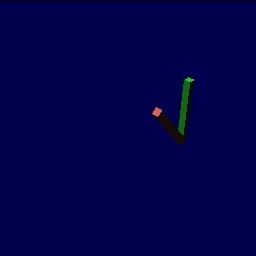
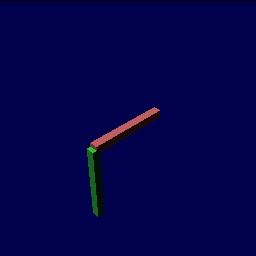
If you only use the operations we've learned so far, translations, rotations, and our various geometry operations, you will construct a completely rigid object. In the following example, the first block is rigidly attached to the world at (0,0,0), and the sphere is rigidly attached to the first at (0.5,0,0).

tutorial10.jpg

A rigid arm

Block(1.0, 0.1, 0.1) : (color="red") {      // this block is long along X
  Translation(0.5,0,-0.5) {                 // blocks intersect at (0.5,0,0)
    Block(0.1, 0.1, 1.0) : (color="green"); // this block is long along Z
  }
}

Revolute Joints

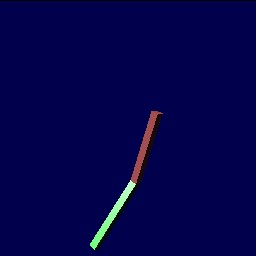
Now let's make this example into a double pendulum. For this we need to use the RevoluteJoint operator. This operator has three optional arguments (as of this writing, the latter two are not yet implemented). The first argument is the starting position of the joint, in radians, and is assumed to be 0 if not given. The latter two are optional joint limits, and the joint is unlimited if they are not given.

Following the robotics standard, revolute joints rotate about the Z axis. For this reason, you must often rotate in and rotate out if you want to place a revolute joint in an existing design. Let's do this for the above arm, previously rigid.

Translation(-0.5,0,0),      // translate to endpoint of bar
 Rotation(1,0,0,-pi/2),     // rotate Z so it aligns with world Y
 RevoluteJoint,             // place a joint
 Rotation(1,0,0,pi/2),      // rotate back
 Translation(0.5,0,0) {     // translate back
  Block(1.0, 0.1, 0.1) : (color="red", mass=1) {
   Translation(0.5,0,0),    // do half our translation 
    Rotation(1,0,0,-pi/2),  // rotate Z so it aligns with world Y
    RevoluteJoint,          // place a second joint
    Rotation(1,0,0,pi/2),   // rotate back
    Translation(0,0,-0.5) {  // translate to center of second block
     Block(0.1, 0.1, 1.0) : (color="green", mass=1);
    }
  }
}

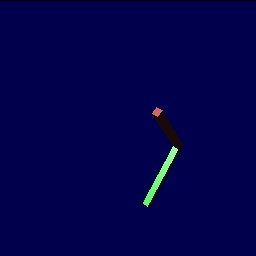
To get the links to move, you must have an active gravity, and you must give the links non-zero masses.
tutorial11.jpg

Double pendulum, 1 sec

tutorial12.jpg

Double pendulum, 2 sec

tutorial13.jpg

Double pendulum, 3 sec

The code for the second example looks a little hairy, but it can be cleaned up very easily if we rotate into the joints' coordinate frames, and never rotate out. I did the above to show that we can use the same blocks as in our previous example.

Prismatic Joints

The other type of one degree-of-freedom joint is the PrismaticJoint operation, a joint which translates along Z. Similar to RevoluteJoint, PrismaticJoint takes three optional arguments: an initial position, and two joint limits (again, not implemented as of this writing). For brevity, I will skip an example of this joint.

Optional Joint Params

Like objects, joints have some parameters that are specific to them.

FreeBody

The last type of degrees-of-freedom you can add to a mechanism is that of FreeBody. A FreeBody joint consists of three prismatic joints and one spherical joint. As of writing, it can neither be named nor controlled, and you cannot set spring properties for a FreeBody joint. It is simply used to disconnect an object from the world, allowing it to move in all six degrees-of-freedom. FreeBody was used in our very first example, to allow the block to fall. It is common to start a mobile robot design with FreeBody, as that is what makes the robot "mobile".
SimLib Reference Documentation